Introduction
Most specialty retailers go live with NCR Voyix Counterpoint and use maybe 30% of what it can do. The rest sits idle — unconfigured, untrained, and costing real money in inefficient workflows, missed revenue, and staff who can't pull the reports they need. The platform is capable; the gap is almost always setup and training.
This guide walks through the core customization areas — system setup, inventory configuration, Data Dictionary changes, and POS form design — plus the training resources that get your team productive fast.
Key Takeaways
- NCR Voyix Counterpoint offers deep customization across system settings, inventory, point of sale, and reporting to match specialty retail workflows
- Core setup — security codes, user roles, tax authorities, and accounting integration — must be completed before go-live
- Inventory and POS customization includes pricing rules, touchscreen layouts, receipt forms, and device configuration by location
- The Data Dictionary lets retailers rename fields, add custom columns, set required field rules, and build new tables — no custom development needed
- Proper training ensures staff can use and maintain customizations effectively
What Is NCR Voyix Counterpoint Customization (and Why It Matters for Specialty Retailers)
NCR Voyix Counterpoint customization refers to the process of configuring and adapting the software to match a specific retailer's workflows, product types, tax rules, customer loyalty structures, and reporting needs — rather than forcing the business to conform to generic POS defaults.
Specialty retailers operate in a different world than general merchandise stores — and off-the-shelf POS defaults reflect that gap painfully. The complexity these businesses manage on a daily basis includes:
- Farm supply and feed stores tracking 15,000–20,000+ SKUs with regulatory requirements for seed labeling (Federal Seed Act) and animal feed (AAFCO standards)
- Garden centers handling seasonal pricing, multi-location inventory, and high SKU counts across plants, hardgoods, and chemicals
- Pet supply and outdoor sporting goods retailers managing vendor-specific compliance, loyalty tiers, and specialized product attributes
That operational complexity is exactly what NCR Voyix Counterpoint customization is built to handle. The range spans from point-and-click configuration — renaming fields in the Data Dictionary, redesigning touchscreen button layouts — all the way to adding custom database fields, creating new SQL tables, and building tailored Crystal Reports for businesses with in-house technical resources.
Key Areas of NCR Voyix Counterpoint System Setup
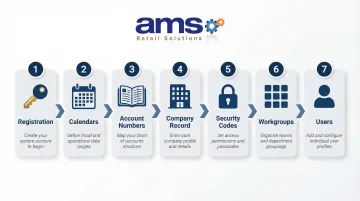
Before any transaction can be processed, system-level data must be configured in a specific sequence. This setup is foundational to all downstream customization.
Required Setup Sequence:
- Registration - License activation and serial number entry
- Calendars - Fiscal periods and accounting calendars
- Account Numbers - Chart of accounts structure (main account and profit center segments)
- Company Record - Company-wide settings including gift card rules, store credit policies, and G/L account mappings
- Security Codes - Access control permissions
- Workgroups - Location and document number series assignments
- Users - Individual user accounts linked to security codes and workgroups
Security Codes: Access Control Layer
Security codes control which Counterpoint menu selections each user can access — including whether they can view or enter costs, reach other store locations, or perform sensitive actions like protected field changes and Data Dictionary edits.
Key permissions include:
- Allow cost entry (controls whether users can input item costs during non-POS activities)
- View cost data on reports and screens
- Access other stores or locations
- Modify protected fields
- Edit Data Dictionary entries
Workgroup Setup
Workgroups define each user's "home" location, store, and document number series. For multi-site retailers, this keeps transactions within the correct site and prevents replication conflicts.
Each workgroup assigns default values that determine where inventory is drawn from, which store's tax rules apply, and which document numbering sequence is used for invoices, receipts, and orders.
Tax Setup Sequence
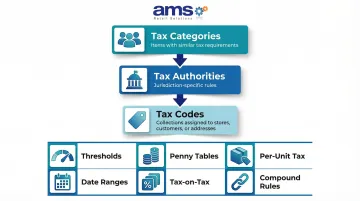
Tax configuration follows a hierarchical three-step process:
- Tax Categories - Group items with similar tax requirements
- Tax Authorities - Define jurisdiction-specific rules
- Tax Codes - Collections of one or more authorities assigned to stores, customers, or shipping addresses
Tax Authority rules support complex scenarios including:
- Multiple tax rates with taxable amount thresholds
- Penny tax tables (for jurisdiction-specific cent-level rounding)
- Fixed per-unit tax amounts
- Minimum and maximum unit taxable amounts
- Targeting rules (all items, specific categories, or exclusions)
- Date ranges for tax holidays
- Tax-on-tax (chained) calculations
A garden center selling across county lines — or a farm market running a tax-free weekend — can configure each scenario without workarounds.
Accounting Interface Options
Counterpoint supports direct interfaces to QuickBooks, Sage, Microsoft Dynamics, and other accounting platforms, as well as export-based interfaces. Setup includes:
- Importing chart of accounts and vendor information
- Mapping profit centers to G/L accounts
- Configuring A/P voucher settings
- Defining distribution rules so financial data flows correctly
Once configured, direct interfaces handle the transfer of G/L distributions and A/P voucher receivings automatically — so your accounting team spends less time chasing discrepancies at month-end.
Customizing Inventory, Point of Sale, and Touchscreen Settings
Inventory Control Setup
Inventory control settings determine default behavior across all item records. Key configuration choices include:
- Cost Method: Average Cost by location (standard default) or Cost of Sales % for non-inventory items
- Barcode Type: UPC, EAN, Code 128, or custom formats
- Physical Count Freeze: Freeze quantity on hand or quantity available during counts
- Item Profiles and Attributes: Up to 6 attributes and 5 code/date/alpha/numeric profile fields per item
Important: Changing these settings post-launch can have downstream impacts on pricing and reporting, so plan carefully during initial setup.
Once your inventory foundation is set, the next step is configuring pricing structures to match how your business actually sells.
Location-Specific and Pricing Customization
Counterpoint supports flexible pricing structures built for complex retail needs:
- Multiple Price Levels: 3 standard levels, expandable to 6 with Advanced Pricing
- Margin-Driven Pricing: Automatic price calculation based on target margins
- Location-Specific Prices: Different pricing by store or warehouse
- Promotional/Contract/Special Pricing: Time-limited or customer-specific pricing
- Price Sheet Functionality: Gridded pricing for items sold in multiple sizes or configurations
The pricing control record governs rounding rules, minimum margins, and cell-level pricing for gridded items. For seasonal retailers — like nurseries managing spring annuals or feed stores running bulk pricing — getting these rules right before peak season prevents margin leakage later.
With pricing configured, store setup controls how each location handles transactions day-to-day.
Point of Sale Store Setup
Store setup defines each location's transaction behavior:
- Ship-From Location: Default inventory source
- Tax Code Precedence: Store vs. customer tax rules
- Drawer Activity Settings: Cash management and shift reconciliation
- Validated Return Rules: Return authorization requirements
- Minimum Price Levels: Floor pricing to protect margins
- Discount Limits: Maximum discount percentages by user or transaction
- Order and Layaway Deposit Requirements: Minimum deposit amounts and payment terms
- Touchscreen vs. Regular Ticket Entry: Interface mode selection
Store behavior settings feed directly into how you design the checkout interface itself.
Touchscreen Code Configuration
Touchscreen layouts can be designed for speed and efficiency:
- Button Pages: Item buttons for fast selection, pay code buttons for quick payment processing
- Run Page Bundles: Automate multi-item combos with a single tap — for example, a "New Pet Starter" button that rings up food, a collar, and a leash together
- Totals Panel Display Style: Configure what information appears in the transaction summary
- Station Assignment: Assign specific touchscreen codes to individual workstations
Plan layouts around how your staff actually works. High-SKU environments like feed stores benefit from scanners that reduce reliance on item buttons, while outdoor kiosk setups — common at farm markets and garden centers — often need comprehensive button pages since keyboards aren't practical.
The final layer of POS configuration covers receipts, forms, and the physical devices connected to each station.
Point of Sale Form Groups and Device Management
Receipt and form customization options include:
- Supported Formats: OPOS (.xml), RDLC (.rdlc), and Crystal Reports (.rpt)
- Built-In Receipt Designer: RDLC designer for adding logos, conditional fields (e.g., suppress customer name for cash transactions), and custom expressions
- Device Configuration: Cash drawers, line displays, payment terminals, signature capture devices, and scales through the Device Management framework
The RDLC Receipt Designer requires the New Device Framework, which must be configured for receipt printers to use .rdlc forms.
Advanced Customization: Data Dictionary, Custom Fields, and Forms
What the Data Dictionary Controls
The Data Dictionary defines how every field in Counterpoint looks, behaves, and validates data. It manages:
- Labels: Display labels (on-screen), long labels (tooltips), and report labels
- Form Behavior: Required fields, skip-during-tabbing settings, and read-only fields
- Default Values and Constraints: Pre-populate fields and enforce rules (e.g., "value must be between X and Y" or "field is required if category equals Z")
- Input Masks and Domains: Predefined types like BOOLEAN (checkboxes), DATE (calendars), EMAIL/URL (validation), and PASSWORD (masked input)
- Picklists: Dropdown lists from mapping values
- Lookup Configurations: Define lookup table, field, validation, and display options
All Data Dictionary customizations are stored in company-specific files within the TopLevel/Configuration/<company>/Dictionary directory on the server. These configuration files survive software upgrades.
Adding Custom Fields to Existing Tables
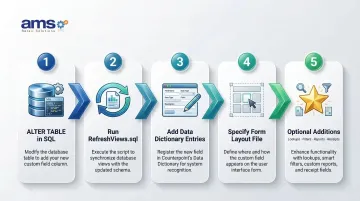
When you need to capture data that doesn't fit existing Counterpoint fields, you can add custom columns. The process involves:
- ALTER TABLE in SQL - Use SQL Server Management Studio to add the physical column (prefix with
USR_to avoid naming conflicts) - Run RefreshViews.sql - Update SQL views to include the new column
- Add Data Dictionary Entries - Define labels, behavior, and validation rules
- Specify Form Layout File - Add the field to the appropriate data entry form
- Optional: Add the field to lookups, filters, zoom windows, reports, and receipts
Example Use Cases:
- Adding a "shipping instructions" note field to purchase request headers
- Adding a "grade level" variable prompt to specific sold items
- Adding a "preferred delivery day" field to customer records
Custom Table Creation
Sometimes a custom field isn't enough — when existing tables cannot hold the required data structure, you can build entirely new custom tables with their own maintenance menu selections, lookups, filters, zoom windows, and Crystal reports.
Example Use Cases:
Corporate account code table linked to customers
Vendor catalog item table for cross-referencing supplier SKUs
Equipment maintenance log table for rental items
Apply foreign key constraints to preserve referential integrity between custom tables and standard Counterpoint tables.
Impact on Future Upgrades
Before running NCR Voyix update scripts (e.g., UpdateFrom8.x.x), check the Database Customizations Report to identify custom columns or tables that conflict with the new schema. The USR_ prefix convention prevents naming conflicts with NCR Voyix-added fields in future versions.
Important: Data Dictionary customizations stored in configuration files are preserved during upgrades, but underlying SQL schema changes (custom columns) are not automatically migrated if NCR Voyix replaces the table structure. After any major update that restructures a table, manually re-add your custom columns before going live.
Your pre-upgrade checklist should include:
- Run the Database Customizations Report before applying any NCR Voyix update script
- Document all
USR_-prefixed columns and custom tables - Re-add custom columns to any tables NCR Voyix restructures during the update
In multi-site environments, the CP Services File Sync service automatically synchronizes Data Dictionary configuration files from the Hub server to all Remote servers, ensuring consistency across all locations.
NCR Voyix Counterpoint Training: Resources and Best Practices
Structured Training Path
NCR Voyix and certified partners offer formal courses that teach configuration and customization:
Course 306: Configuring Counterpoint
- Installation procedures and database creation
- System data, inventory settings, and customer/purchasing data configuration
- POS setup and Data Dictionary modification
- Database utilities and maintenance
Course 307: Customizing Counterpoint
- SQL fundamentals (SELECT, UPDATE, ALTER TABLE)
- Adding custom fields and tables to the database
- Customizing add-on-the-fly forms
- Integrating custom Crystal Reports
- Using the
USR_prefix to preserve customizations through upgrades
Each course includes guided exercises that teach users to apply settings hands-on in a demo database environment.
Self-Service and Ongoing Training Resources
NCR Voyix Counterpoint User Portal (userportal.counterpointpos.com):
- Online help documentation
- Software downloads (full installations and service packs)
- Service pack release logs
- Training tutorials stored in the Tutorials folder
Practice Company Utility:
- Creates a practice database that is a direct copy of live company data
- Enables safe training and testing without affecting production records
- Clearly identified with
**Practice**on all screens and reports - Automatically disables critical functions like accounting interface and live credit card processing
Access the Practice Company utility via Start > All Programs > NCR Voyix Counterpoint > Utilities > Update Practice Company on the server. Run when no other users are accessing the database.
Once your resources are in place, rolling out training consistently across your team is where the real gains happen.
Internal Training Rollout Best Practices
Create User-Specific Security Codes and Menu Codes:
- Limit new employees to only the functions they need
- Use the Copy User function to onboard new team members quickly
- Gradually expand access as staff gain proficiency
Leverage Quick Report and Column Designer:
- Build department-specific views without requiring Crystal Reports expertise
- Customize data grids and lookups to show only relevant fields
- Export filtered data to Excel for ad-hoc analysis
For specialty retailers — garden centers, feed stores, pet supply shops — the payoff is practical: faster checkouts, fewer errors at the register, and staff who can answer customer questions without leaving the floor. Consistent training turns software investment into daily operational efficiency.
How AMS Retail Solutions Supports Your Customization Journey
Customizing NCR Voyix Counterpoint correctly takes more than software knowledge — it requires understanding how specialty retail actually operates. AMS Retail Solutions is a dedicated NCR Voyix Counterpoint partner for retailers in garden, farm, feed, pet, and outdoor sporting goods segments, delivering system configuration aligned to each client's specific workflows.
AMS Retail acts as both a hands-on partner and trusted advisor, so you never have to navigate complex customization decisions alone. The team provides 24/7 support, onboarding, and training across a full range of configuration needs:
- Initial system setup and workflow alignment
- Advanced Data Dictionary customization
- Accounting software integration
- Multi-site and enterprise configuration
Ready to get your system configured the right way? Call 757.495.4995 to talk through your specific needs.
Frequently Asked Questions
What customizations can I make to NCR Voyix Counterpoint without advanced technical skills?
Many customizations — including renaming fields, setting required/default values, building custom lookups, creating menu codes, and designing touchscreen layouts — can be done entirely within the Counterpoint interface using the Data Dictionary and setup menus, with no SQL or programming knowledge required.
How long does it take to fully configure NCR Voyix Counterpoint for a specialty retail store?
A new installation requires completing system data, inventory, customer, purchasing, and POS setup in sequence. Depending on store complexity, number of locations, and whether data is being migrated from a prior system, the process can take anywhere from a few days to several weeks.
Can NCR Voyix Counterpoint be customized to support multiple store locations?
Counterpoint supports multi-site operations through the Hub/Remote option. Features include centralized purchasing, inventory transfers, location-specific pricing, workgroup-based access control, and data replication across all sites. Each location can be customized independently while sharing a common item and customer database.
Can I customize the receipts and forms that print in NCR Voyix Counterpoint?
Receipts and forms can be customized using the built-in RDLC Receipt Designer (for OPOS/thermal printers) or Crystal Reports (for Windows printers). Both tools let retailers add logos, conditional fields, custom expressions, barcodes, and captured signatures to any form type.
Do I need a certified partner to customize NCR Voyix Counterpoint?
Many configuration tasks can be handled by trained store staff. However, advanced work — such as adding custom database tables, modifying SQL views, integrating accounting software, or building custom Crystal reports — benefits significantly from a certified NCR Voyix Counterpoint partner with the right technical expertise and industry experience.
What training resources does NCR Voyix Counterpoint provide for new users?
NCR Voyix offers structured training courses, online help documentation, a user portal, and a Practice Company utility that lets staff train on a live copy of their data. These resources are supplemented by partner-provided onboarding, role-based training, and 24/7 support from certified partners like AMS Retail Solutions.