Introduction
In April 2024, NCR Voyix implemented a security update to the NCR Voyix Counterpoint User Portal that now requires a password in addition to your serial number and ZIP code. All clients with an NCR Voyix SecurePay account received an email from NCR Voyix with instructions to set up this password.
If you haven't logged in to verify your payment method since this change, your NCR Voyix services—including NCR Voyix Secure Pay and CP Mobile—may be at risk of disruption.
This guide walks NCR Voyix Counterpoint users through every step: logging into the updated portal, adding or updating a payment profile, and assigning it to the correct services. If you're an AMS Retail client and didn't receive the setup email or need hands-on assistance, contact the AMS Retail support team at 757.495.4995.
Key Takeaways
- NCR Voyix User Portal now requires Serial Number + ZIP Code + Password (effective April 2024)
- Log in at userportal.counterpointpos.com to verify or update payment methods
- Payment profiles support credit card or eCheck (ACH) options
- One payment profile can cover multiple NCR Voyix services
- Missing credentials? Contact NCR Voyix Sales Operations or AMS Retail at 757.495.4995
What Changed in the NCR Voyix User Portal — and Why It Matters
The April 2024 Security Update
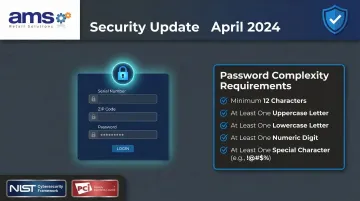
NCR Voyix added a mandatory password requirement to the Counterpoint User Portal login process in April 2024. Previously, users accessed the portal using only their Counterpoint serial number and ZIP code. Now, a password meeting specific complexity requirements—minimum 12 characters with uppercase, lowercase, numeric, and special characters—is required. This enhancement aligns with security standards recommended by NIST and the PCI Security Standards Council to better protect merchant data and payment system access.
Which Services Are Affected
This portal update directly impacts two critical NCR Voyix services:
- NCR Voyix Secure Pay - Your integrated payment gateway for processing credit, debit, and gift card transactions
- CP Mobile - Mobile POS and inventory management application
Without an active, up-to-date payment profile in the portal, these services may be suspended or fail to renew. For retail businesses, this means potential interruption of payment processing at the point of sale—a disruption that can halt daily operations. That makes this a good moment to confirm your payment details are current before a lapse forces the issue.
Verify Your Payment Method
Expired credit cards or closed bank accounts can prevent service renewals without any warning. While you're logged in, check that your payment method on file is active and up to date.
AMS Retail clients: If you didn't receive the notification email or need assistance, contact the support team at 757.495.4995 (available 24/7).
What You Need Before Getting Started
Have these three things ready before you log in:
1. Your NCR Voyix Counterpoint Serial Number
Find this inside your Counterpoint software:
- Counterpoint V7: Navigate to System / Utilities / Environment
- Counterpoint SQL: Navigate to System / Registration
2. Your ZIP or Postal Code
Use the ZIP or postal code associated with your Counterpoint license registration. Non-US users may need to enter their country name in this field.
3. Your User Portal Password
If you haven't set a password since April 2024, complete the setup using the link in NCR Voyix's notification email before logging in.
Additional Requirements:
- A current web browser (Chrome, Firefox, Safari, or Edge)
- Access to the email account associated with your NCR Voyix account (for password resets if needed)
Can't find your credentials? Contact NCR Voyix Sales Operations at SalesOperations.Counterpoint@ncrvoyix.com or reach out to AMS Retail at 757.495.4995 for assistance.
How to Log Into the NCR Voyix Counterpoint User Portal
Follow these steps to access your account. The entire process takes under two minutes once your credentials are ready.
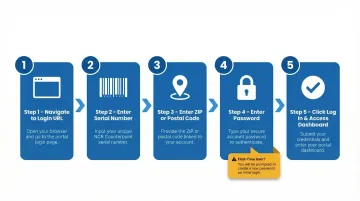
Step 1: Navigate to the Login Page
Open your web browser and go to https://userportal.counterpointpos.com/support/login.htm. This is the only official login URL—bookmark it for future reference.
Step 2: Enter Your Serial Number
Type your Counterpoint Serial Number in the first field. This is case-sensitive and must match the number tied to your active license exactly.
Step 3: Enter Your ZIP or Postal Code
Enter the ZIP or postal code associated with your Counterpoint license. For non-US users, you may need to enter your country name in this field.
Step 4: Enter Your Password
Type the password you created after receiving NCR Voyix's April 2024 notification.
First time logging in? If you haven't set a password yet, use the setup link from the NCR Voyix email before proceeding.
Step 5: Click "Log In"
After entering all credentials correctly, click the "Log In" button. A successful login takes you to the User Portal dashboard, where you'll see the main menu bar including the "My Payment Profile" option.
Login Issues? See the Common Issues and Troubleshooting section below.
How to Add or Update Your NCR Voyix Payment Profile
Access the Payment Profile Screen
After logging in, click "My Payment Profile" from the menu bar. This screen displays any existing payment profiles, the services they're assigned to, and an "Add" button for creating new profiles.
Click "Add" to Create a New Payment Method
If you have an expired card or closed bank account on file, add a new payment profile rather than trying to edit the old one. Click the "Add" button to begin.
Select Your Payment Profile Type
Choose one of two options:
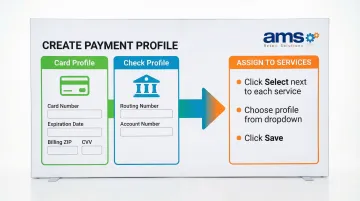
- Create New Card Profile — for credit or debit card payments
- Create New Check Profile — for eCheck (ACH) payments directly from your bank account
Enter Payment Information
Fill in all required fields accurately:
For Card Profiles:
- Card number
- Expiration date
- Billing ZIP code (must match your card's billing address)
- CVV security code
For Check Profiles:
- Bank routing number (9 digits)
- Bank account number
Routing numbers and billing ZIP codes are the most common sources of profile creation errors, so review these carefully before submitting.
Click "Create Payment Profile"
After entering all information, click "Create Payment Profile." The new profile will appear in your payment profile list immediately. If you see an error message or the profile doesn't appear, contact NCR Voyix support for assistance.
How to Assign a Payment Profile to Your NCR Voyix Services
Creating a payment profile is only half the process. You must explicitly assign it to each NCR Voyix service to ensure proper billing.
Locate Your Service List
On the "My Payment Profile" screen, you'll see a list of your NCR Voyix services (such as NCR Voyix Secure Pay and CP Mobile). Each service has a "Select" option next to it.
Click "Select" Next to Each Service
Click "Select" next to the first service that needs a payment method assigned or updated.
Choose Your Payment Profile
In the "Mask eCheck/Card" dropdown that appears, select the payment profile you want to use. The dropdown displays only the last four digits of the card or account number.
Click "Save"
Click "Save" to assign the payment profile to that service. Repeat this process for every service listed — each one must be assigned and saved individually. Saving a profile to one service does not apply it to the others.
Confirm Your Assignments
After saving, verify that each service shows the correct payment profile assigned. Consider taking a screenshot or noting which profile is assigned to which service.
Common Issues and Troubleshooting Tips
Issue: Can't Log In — Password Never Set
Symptom: You enter your serial number and ZIP code but don't have a password, or your password doesn't work.
Solution: Locate the original NCR Voyix notification email from April 2024 and use the password setup link. If you can't find the email, contact NCR Voyix Sales Operations at SalesOperations.Counterpoint@ncrvoyix.com with the subject line "Web login inquiry." AMS Retail clients can also call 757.495.4995 for assistance navigating this process.
Issue: Don't Know Your Serial Number
Symptom: You're not sure what your Counterpoint serial number is, or the one you have isn't working.
Solution: Retrieve it from within Counterpoint:
- Counterpoint V7: System / Utilities / Environment
- Counterpoint SQL: System / Registration
If you can't access your Counterpoint system, contact your support team—they can look up your serial number.
Issue: Payment Profile Created But Services Show Unassigned
Symptom: You successfully created a payment profile, but your services still show no payment method or appear unbilled.
Solution: This almost always means you created the profile but didn't complete the assignment step. Return to "My Payment Profile," click "Select" next to each service, choose your payment profile from the dropdown, and click "Save" for each service individually.
Issue: Payment Profile Creation Fails
Symptom: You receive an error message when trying to create a payment profile.
Solution: Check these common culprits:
- Incorrect billing ZIP code for card profiles
- Transposed digits in routing or account numbers for check profiles
- Card already expired or declined
Double-check all information and try again. If the problem continues, contact NCR Voyix support directly.
Frequently Asked Questions
How much does Counterpoint POS cost?
NCR Voyix Counterpoint is a purchased software asset, not a SaaS subscription, so pricing varies based on the number of concurrent licenses, modules, and implementation scope. Contact AMS Retail Solutions at 757.495.4995 for a customized quote based on your specific business needs.
Where do I find my NCR Voyix Counterpoint serial number?
Navigate to System / Utilities / Environment in Counterpoint V7, or System / Registration in Counterpoint SQL. If you can't access your system, contact your support team—they can retrieve it for you.
What happens if I don't update my payment method in the NCR Voyix User Portal?
NCR Voyix services tied to an expired or missing payment profile—such as NCR Voyix Secure Pay and CP Mobile—may be suspended or fail to renew. This can directly disrupt payment processing at your point of sale.
Can I use one payment profile for multiple NCR Voyix services?
Yes. A single saved payment profile can be assigned to multiple NCR Voyix services. Just complete the "Select" and "Save" steps on the My Payment Profile screen for each service you want to assign.
What should I do if I never received the NCR Voyix password setup email?
Check your spam or junk folders first. If it's not there, contact NCR Voyix Sales Operations at SalesOperations.Counterpoint@ncrvoyix.com or call your provider—AMS Retail clients can reach us at 757.495.4995.
What is the difference between a Card Profile and a Check Profile in the NCR Voyix User Portal?
A Card Profile bills a credit or debit card, while a Check Profile initiates an ACH debit from your bank account. Choose based on how your business prefers to handle software service billing.