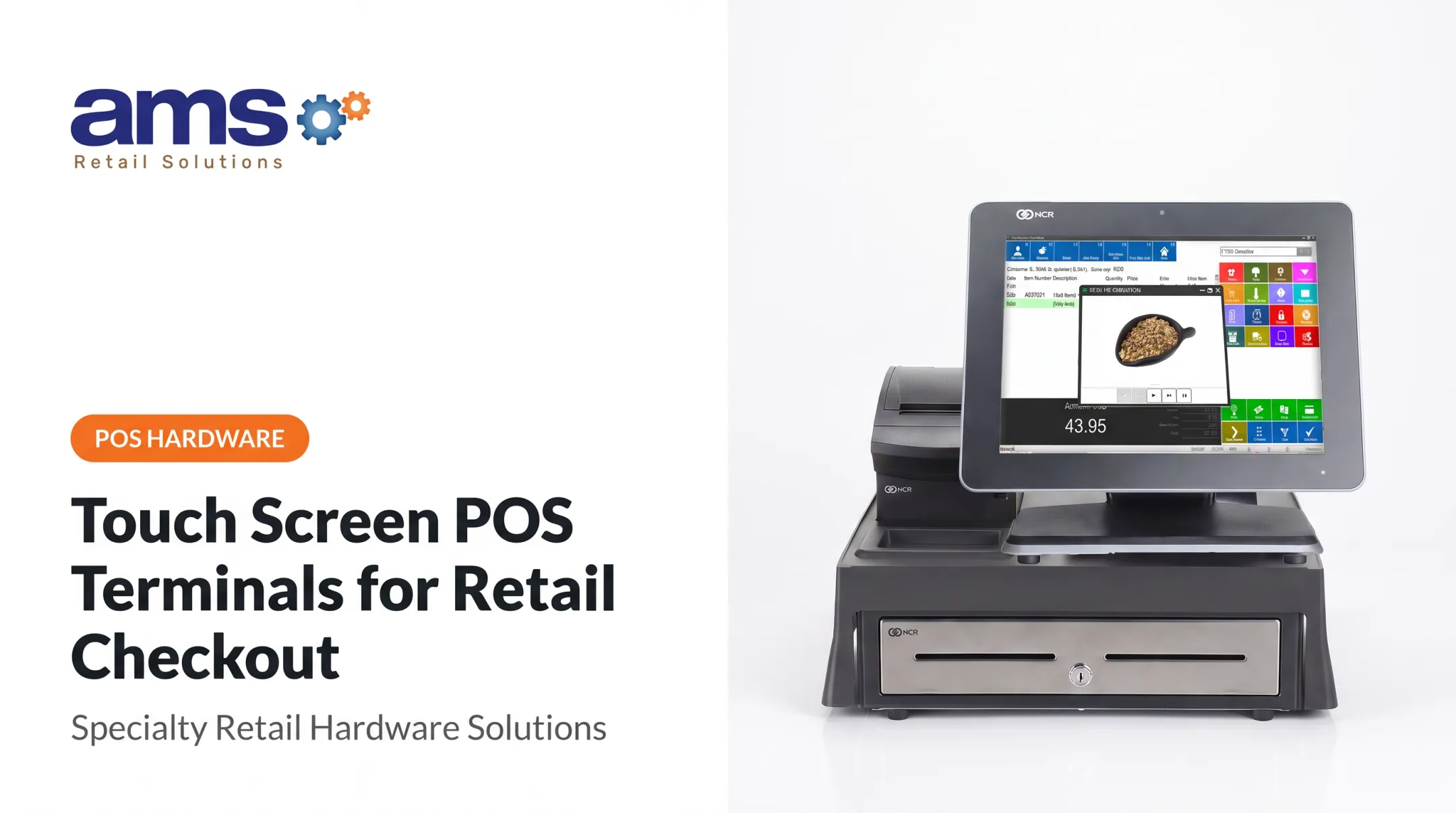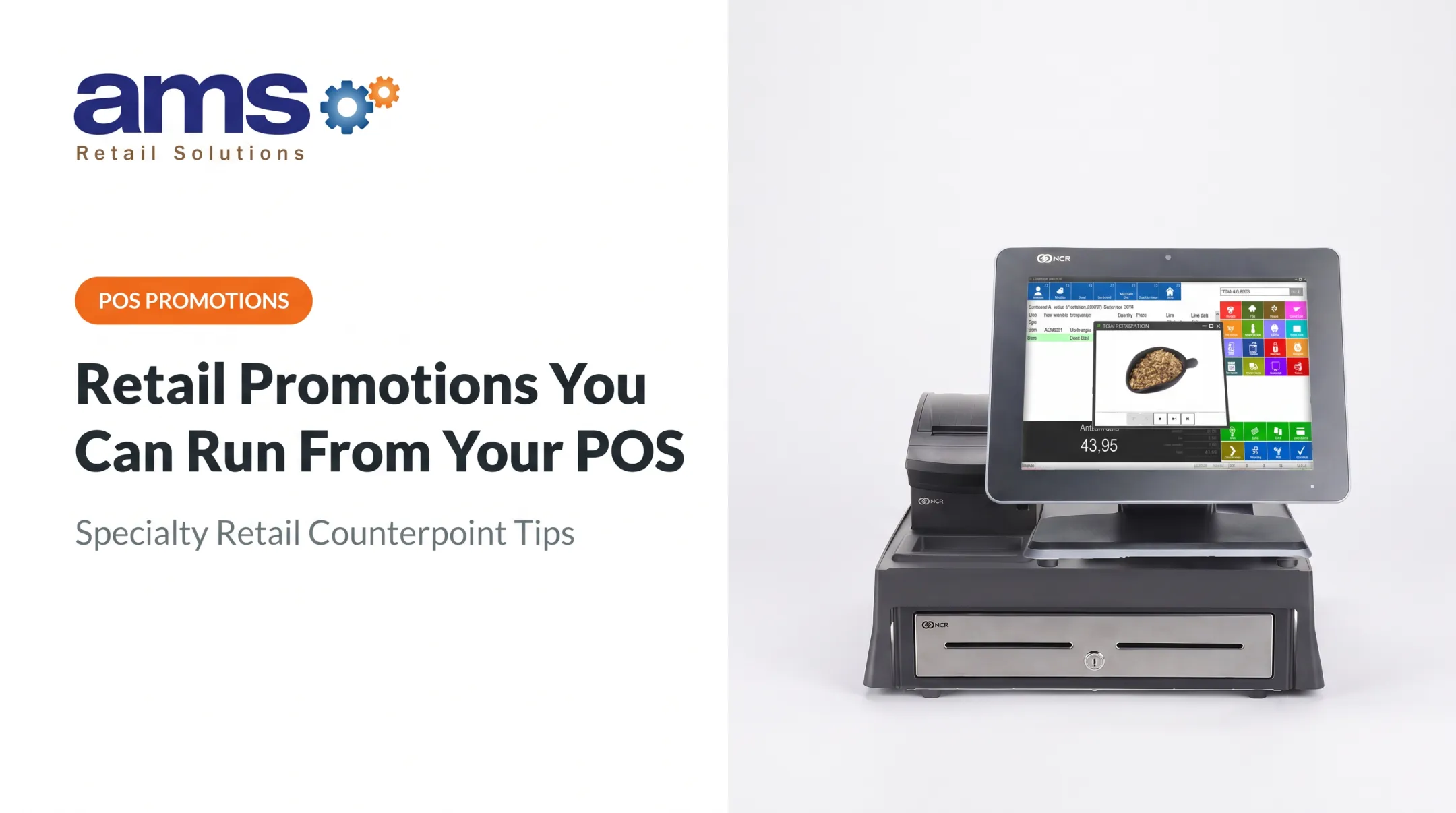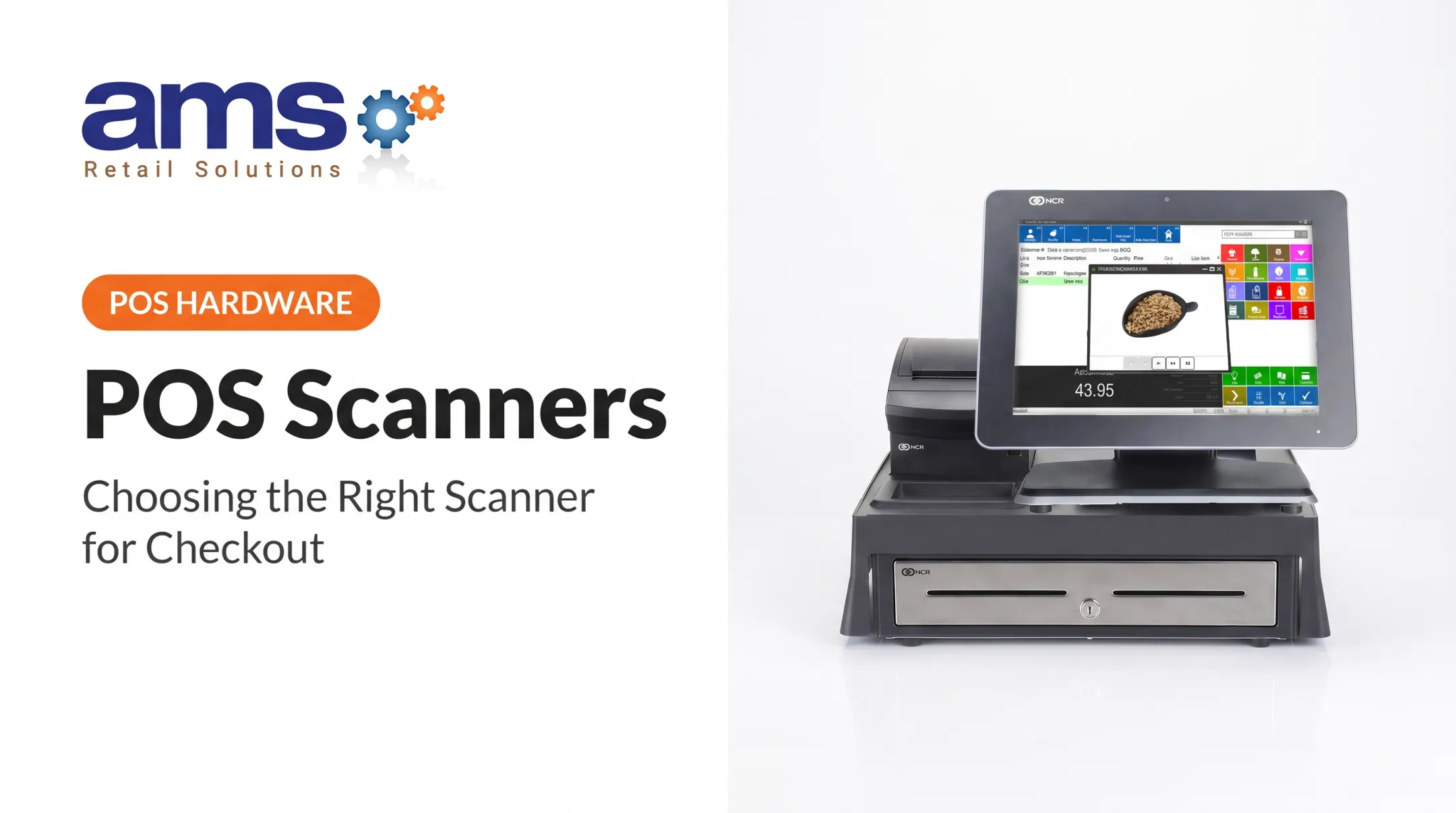

A customer-facing display (CFD) fixes that timing problem. It mirrors the POS transaction as it happens, so shoppers catch mistakes before they pay. Pricing trust matters: a University at Buffalo survey of 2,011 U.S. consumers found 71% would switch retailers over repeated pricing errors. This article covers what a CFD is, why it matters, how specialty stores use it, and what to check before buying.
Key Takeaways
- A CFD mirrors POS data so shoppers see items, prices, discounts, and totals live.
- Fewer checkout disputes, earlier error catches, and clearer pricing at the register.
- Promotions and loyalty messages can appear during checkout, if your POS supports them.
- Evaluate the display as part of the whole POS, payment, hardware, and support setup.
What Is a Customer-Facing Display?
A customer-facing display (CFD) is a screen angled toward the shopper and connected to the POS. Lightspeed's documentation describes it as a secondary display that previews the sale in real time, with fields such as quantity, item, price, discount, subtotal, tax, and total.
How It Differs From Similar Technology
- Self-checkout kiosk: the shopper scans and completes the sale alone. A CFD only shows what the cashier is ringing.
- Payment terminal: it collects card details. A CFD shows the whole purchase.
- Digital signage: it plays general advertising. A CFD can show content tied to the current transaction.
The Basic Flow
- The cashier scans or keys in an item.
- The POS updates the ticket.
- The display mirrors the change immediately.
- The shopper reviews everything before payment is finalized.

Some POS systems extend that same screen beyond the ticket. Counterpoint's Customer Display Designer, for example, places media on a secondary monitor alongside essential ticket and payment information, with customizable layouts.
Why Customer-Facing Displays Matter for Retail Checkout
Trust and Accuracy
Say a shopper buys four items, one on a "buy two, save 15%" promotion. Without a display, they find out at the receipt whether the discount landed. With one, they see it applied line by line and can speak up while the cashier is still at the register.
Price accuracy is a real issue even in regulated retail. Massachusetts' contribution to the 2024 National Price Verification Survey covered 27,750 items. Mass.gov reported 97.9% matched between shelf and register, yet 312 items were still overcharges. That survey measured pricing, not displays, but it shows mismatches happen.
Fewer Disputes, Fewer Corrections
Common friction points a display surfaces early:
- A missing sale price
- A wrong quantity
- An unexpected discount
- A product rung up under the wrong variation
Catching these before payment avoids voids, re-rings, refunds, and calls for a supervisor. No reliable benchmark isolates how much a display reduces those costs. Treat the benefit as logical rather than guaranteed, and measure your own void and refund rates before and after.
Speed Without Replacing the Cashier
The cashier stays in control. The shopper watches the running total, gets a payment method ready, and flags problems mid-scan instead of after.
Financial and Experience Effects
Accurate checkout builds shopper confidence in your pricing and strengthens loyalty over time. Retail shrink averaged 1.6% in fiscal 2022, about $112.1 billion, according to the NRF's security survey. That figure covers all shrink and is mostly unrelated to checkout screens, so a display is one small piece of loss prevention, not a cure.

Retail Use Cases by Store Type
Garden Centers and Nurseries
Mixed carts are the norm: plants in several pot sizes, soil, fertilizer, seasonal décor. The display lets shoppers confirm sizes, quantities, and variations. In spring, a short prompt for a complementary product, such as plant food with a rose purchase, fits without slowing the line.
Farm Markets
Weighed and variable-price goods are the sticking point. Under NIST Handbook 44, retail computing scales must show weight on the customer's side, and the handbook's provisions apply where states adopt them. Check which scale and POS integrations your setup needs before assuming the weight and price will display.
Feed and Seed
Large quantities, bag and case units, repeat orders, and special orders invite misunderstandings. Seeing "10 bags at the bag price" on screen prevents the "I thought that was per pound" argument.
Outdoor Sporting Goods
Size, color, model, accessories, memberships, and coupons all need confirming.
Age-restricted items add a workflow step. Rules vary: federal tobacco sales require a photo ID check for buyers under 30, while ammunition and knife rules differ by state. A display doesn't verify age, so confirm current federal and state requirements with counsel.
Other Specialty Retail
Useful prompts include:
- Loyalty enrollment
- Digital receipt choice
- Return policy
- Brief product education
Keep the transaction details dominant. If the screen becomes an ad, shoppers stop reading it.
Features and Buying Considerations
Core Display Capabilities
Prioritize a clear transaction view that shows:
- Itemization, quantities, and prices
- Discounts, taxes, and running totals
- Payment status and a clear "complete" confirmation
Specs vary widely. The Epson DM-D70, for instance, is a 7-inch, 800 x 480 display at roughly 300 cd/m2 with a 75 x 75 mm VESA mount, while NCR's XL10W starts at 10.1 inches.

Compare size, brightness, viewing angle, and mounting for your counter.
POS Compatibility Comes First
A good-looking screen is useless if it can't pull the right data. Ask how it connects to:
- Product catalogs and inventory
- Pricing rules and promotions
- Loyalty programs
- Tax configuration
- Payment processing and receipts
- Reporting
AMS Retail Solutions is one option for specialty retailers wanting a single-source POS built around NCR Voyix Counterpoint, for one store or many. Counterpoint's documentation covers secondary-monitor media and points-based loyalty at the POS, and AMS offers 24/7 support and retail-hardened equipment.
Confirm offline behavior, equipment, and support for your exact display configuration. Counterpoint's offline training addresses ticket entry rather than guaranteeing display behavior.
Physical and Accessibility Needs
- Counter space, cable routing, and glare from windows or lighting
- Cleaning and durability in dusty, wet, or outdoor-adjacent environments
- Text size and contrast: WCAG 2.2 AA suggests 4.5:1 for normal text
- Language options
- Visibility for customers using wheelchairs; ADA sales counter guidance sets a 36-inch maximum height for the accessible portion
These are benchmarks, not blanket rules for a read-only screen, so check applicable ADA guidance.
Privacy matters too. PCI guidance limits displayed card numbers to the BIN and last four digits unless there's documented justification. Also consider whether names or loyalty balances should appear on a screen others can see.
Content Controls
Before you buy, confirm:
- Who edits promotional messages
- Whether content can schedule by season or location
- How irrelevant offers are blocked
- Whether results appear in POS or marketing reports
How to Implement a Display at Checkout
Map the Checkout Journey
Walk through each checkout step and decide what the display shows at every point:
- Greeting
- Scanning
- Item review
- Discounts and loyalty
- Payment
- Receipt choice
- Completion
Avoid duplicating prompts already shown on the payment terminal.
Train Staff for Visible Discrepancies
When the screen and the shelf or receipt disagree, train staff to resolve it in plain view:
- Pause before taking payment.
- Correct the item or price in the POS.
- Explain the change plainly.
- Confirm the new total with the customer.
Test Under Real Conditions
Run the display through busy periods and unusual transactions:
- Returns and exchanges
- Discounts and loyalty redemptions
- Weighed goods
- Special orders
- Split payments
- Connectivity drops and offline procedures, where supported
NIST's price-verification procedure offers a model: sample items across store areas and compare screen, receipt, and shelf prices.
Frequently Asked Questions
What is a customer-facing display at a retail checkout?
It's a POS-connected screen facing the shopper. It shows products, quantities, prices, discounts, and totals so they can review the sale before paying.
What is the difference between a customer-facing display and a self-checkout kiosk?
A customer-facing display shows transaction information while the cashier works. A self-checkout kiosk is interactive, letting customers scan, choose options, and pay on their own.
How does a customer-facing display improve retail checkout?
It improves price transparency and catches errors earlier. That means fewer disputes, smoother payment preparation, and a more consistent experience.
Can a retail customer display show promotions and loyalty discounts?
Often, but it depends on your POS and display configuration. Verify promotions, loyalty information, and seasonal messaging before you buy.
What should retailers look for when choosing a customer-facing display?
Prioritize POS integration, screen readability, durability, and payment compatibility. Also confirm accessibility, privacy, content controls, support, and offline continuity.
Does a customer-facing display work with an existing POS system?
It depends on the POS software, hardware, payment setup, and available integrations. Confirm the full configuration with your POS provider or implementation partner.