
In the 2024 NCWM price verification survey, 23% of inspections failed on pricing accuracy. Manual tagging contributes to that.
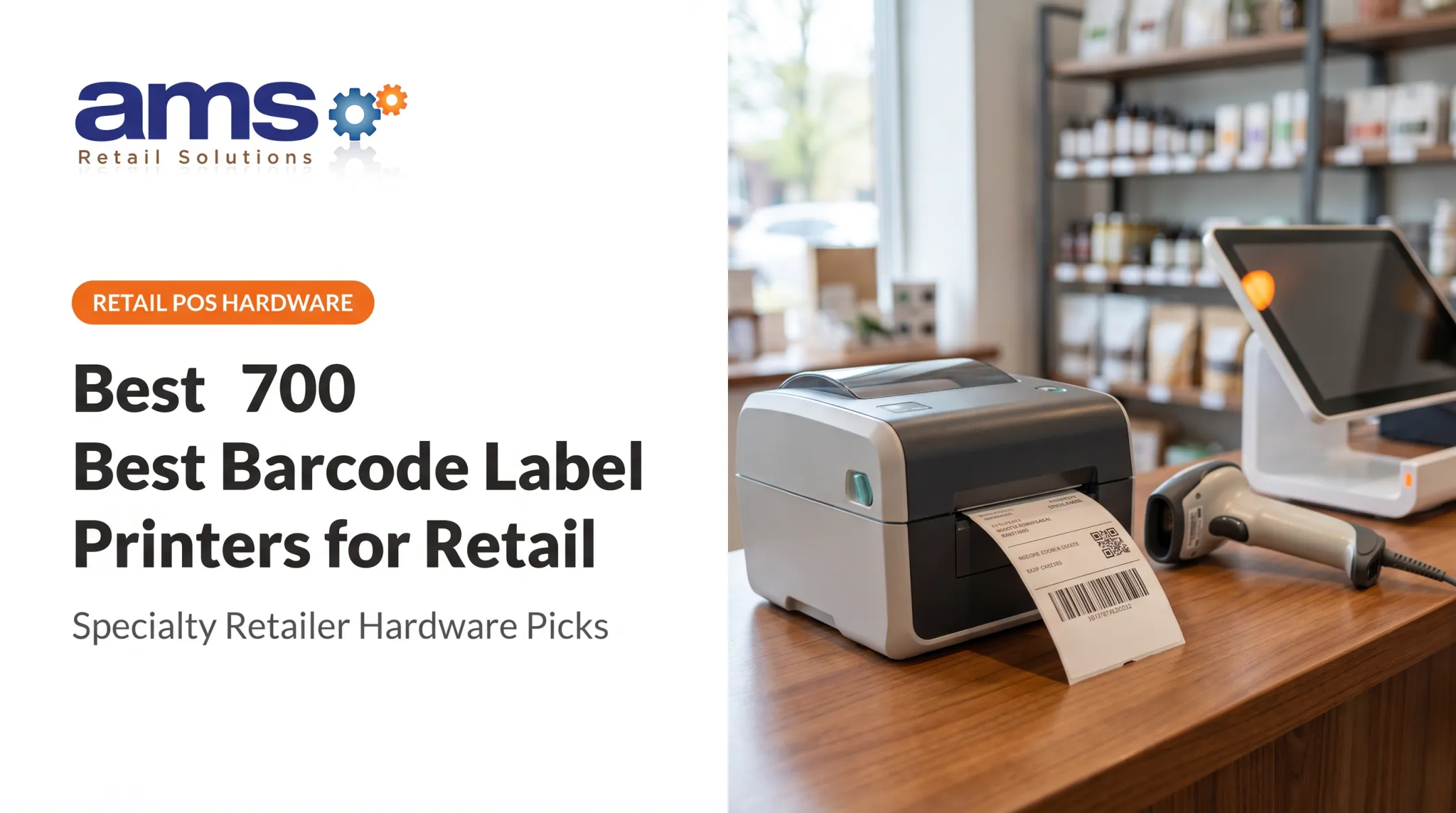
The real decision is the printer and media combination that fits your product mix, volume, environment, barcode needs, and POS workflow. This guide covers printer types, buying criteria, POS connection, setup, testing, and maintenance for specialty retailers.
Key Takeaways
- Choose by workload, tag format, environment, and connectivity, not purchase price alone.
- Direct thermal suits short-term indoor labels; thermal transfer holds up better against heat, sun, moisture, and abrasion.
- Confirm printer, stock, software, barcode format, and POS work together before you buy.
- Test the full item-to-tag workflow, including reprints and offline procedures, before rollout.
Price Tag Printer Options for Retail
Direct thermal vs. thermal transfer
Direct thermal (DT) uses heat-sensitive media and no ribbon. It's simple and cheap to run, which suits routine shelf labels. The catch: per Zebra, prolonged sunlight, heat, and abrasion can make the image unreadable.
Thermal transfer (TT) melts ribbon onto the stock. With the right ribbon and media pairing, it resists heat and moisture. That means extra consumables, and the ribbon must match the media:
| Ribbon | Typical pairing and resistance |
|---|---|
| Wax | Paper; little chemical exposure or abrasion |
| Wax/resin | Topcoated paper, matte synthetics; moderate abrasion and chemicals |
| Resin | Synthetics; harsh chemicals, high heat, outdoor use |
Desktop, commercial, and mobile
- Desktop: compact, low-to-mid volume, fits a back counter. Examples: Zebra ZD411, ZD421, ZD621.
- Commercial: mid-to-high volume, wider media, built for batch work. Examples: ZT231, ZT411, ZT421.
- Mobile: prints at the shelf or plant bench. Examples: ZQ320 Plus, ZQ511, ZQ521 (direct thermal only).
Published specs don't establish a universal duty-cycle threshold between classes, so ask the manufacturer about recommended volume for your model.
Key specs:
- ZD421 supports media 0.585 to 4.25 in wide for DT, with 203 or 300 dpi.
- ZT411 prints up to 14 ips at 203 dpi.
- Warranty is typically 1 to 2 years in the US depending on model.
- All nine models above work with the Windows ZDesigner driver. That is not the same as POS compatibility.
Label and tag formats
- Adhesive die-cut labels: shelf edges and packaged feed or pet goods.
- Hang tags: apparel, sporting goods, and irregular items. Zebra's 67251 retail tag has a sensing notch, hole, and perforation.
- Continuous stock: variable-length labels, cut to fit.
- Perforated or fanfold: fast batch tagging.
For nurseries, Zebra lists its 8000T Tuff Tag for outdoor use, rated up to 1 to 2 years outdoors. Those are product-specific ratings, not universal TT claims. Test any tag on your actual pots before buying in bulk.
How to Choose a Price Tag Printer
Start with tag content
List every field: price, name, SKU, unit of measure, sale info, barcode. Content sets label size and resolution. Per GS1 US, a UPC-A at minimum size is 1.174 in wide with 0.72 in bar height and quiet zones of 9X on each side. A 1.25 x 1 in label is tight once you add a price and description.

Resolution: 203 dpi is typical; 300 dpi helps with small barcodes and fonts. Resolution alone doesn't guarantee a compliant barcode.
Volume, connectivity, and cost
- Estimate normal and peak tagging, such as spring plant arrivals or a seasonal markdown.
- Decide whether staff print at a workstation or on the floor. Floor printing points to mobile.
- Check connections: USB, Ethernet, Wi-Fi, Bluetooth. Confirm each works with your computers, network, and POS.
- Count total cost: labels, ribbons, printheads, platens, support, waste, and staff time. Ask each vendor for per-label costs and expected printhead life when you request quotes.
Environment
- Moisture, dirt, sun, and freezer conditions drive media choice. For example, Zebra's 8000D shelf label uses adhesive rated for freezer use, service range -40 to 150°F.
- ZQ511/ZQ521 are rated IP54 (IP65 with exoskeleton). That covers the printer, not label durability.
- ZD621 operates at 40 to 105°F, so an unconditioned shed is a bad spot.
Quick decision framework
| Need | Likely fit |
|---|---|
| Low-volume indoor tagging | Desktop DT |
| Frequent batch price changes | Desktop TT or commercial |
| Durable outdoor or warehouse labels | TT with synthetic stock and resin ribbon |
| Shelf-edge or bench tagging | Mobile |
| Multi-store rollout | One standard model and media per location |
Set Up a Retail Price Tag Printer Step by Step
- Document requirements. Record label size, material, adhesive, barcode type, price format, units, promo fields, and any required product information.
- Prepare the space. Use grounded power, ventilation, and clearance. Keep it dry and dust-free, and place output away from checkout flow. Don't set the printer on cushioned surfaces.
- Install software. Install the driver before connecting USB, or Windows may report an unknown device. Zebra documents Windows driver v10 and Setup Utilities for the ZD421.
- Load and calibrate media. Set stock type, width, gap or black-mark sensing, darkness, and cutter. On ZD421/ZD621, SmartCal runs by holding PAUSE+CANCEL for 2 seconds. Wrong settings cause skipped tags, misalignment, and wasted stock.
- Build a template. Prioritize a readable price and a scannable barcode. Link fields to item data so no one retypes prices or SKUs.
- Run an end-to-end test. Try regular and sale items, long names, special characters, different materials, reprints, and scans at checkout. Get staff sign-off.
- Write a short procedure. Cover item selection, batch printing, media changes, error correction, price changes, and who to call.

Note that a shared printer language (ZPL, EPL2, CPCL) doesn't prove POS compatibility.
Connect Price Tag Printing to the Retail POS Workflow
Integration approaches
Common routes are native POS printing, a compatible label utility, middleware, or a controlled CSV export/import. The right one depends on your POS, printer language, and store workflow.

For Counterpoint users, the official 2022 configuration manual requires NiceLabel Pro for the Label Editor. Counterpoint's functions guide also describes on-demand labels and labels triggered by purchase requests, receiving, or transfers, with formats such as one-up, split, butterfly, and hang-tag.
That guide names Cognitive, Eltron, and Datamax; it doesn't certify current printer models.
Data that should reach the tag
- SKU or UPC
- Description
- Current and sale price
- Unit information
- Department
- Size or variation
- Promotion or location fields
Controls against stale prices
- Approve item data before printing.
- Batch or timestamp price changes.
- Limit manual overrides.
- Scan-test tags at checkout.
NIST Handbook 130 follows the same logic: it compares shelf and advertised prices against register prices.
Where AMS Retail Solutions fits
AMS Retail Solutions is an authorized NCR Voyix Counterpoint provider serving independent specialty retailers, from one store to many. The team learns how a business operates before recommending a setup.
If you're adding tag printing to a Counterpoint system, they can review equipment, workflow, and scalability. Compatibility should be confirmed in a system review, not assumed.
Counterpoint also supports offline POS operation when the network is down, which matters for your fallback plan.
Maintenance and Troubleshooting
Routine care
- Printhead: Zebra's general ZD421/ZD621 schedule says every 5 rolls; the TT printhead procedure says every new roll. Use a cleaning pen and let it dry 1 minute.
- Platen and sensors: Wipe standard platens with a lint-free cloth moistened with 99.7% isopropyl alcohol. Use dry swabs or a brush on sensors. Avoid compressor air with oil or water.
- Media storage: Store media in a clean, dry, cool, dark place. Use oldest stock first.
- Firmware: Record your configuration first, use the correct model file, and wait for the reset to finish.
Troubleshooting sequence
Check in this order: media, calibration, settings, connection. Then service.
- Faint or streaked: Check darkness, speed, dirty or worn printhead, platen, and ribbon/media mismatch.
- Skipped or misaligned: Check loading, sensor position, recalibration, and platen.
- Unreadable barcodes: Lower the speed, raise darkness, and check quiet zones.
- Wrong prices: Check item data and template mapping, not the printer.
Plan for downtime
Keep approved spare media on hand and a written fallback so price changes continue during outages. Review performance after seasonal resets, major price changes, new categories, or added registers and stores.
Frequently Asked Questions
What is the best thermal printer for price tags?
It depends on volume, tag material, durability, barcodes, connectivity, and POS compatibility. Compare verified current models against those criteria.
What type of printer is used for retail price tags?
Direct thermal and thermal transfer printers, in desktop, commercial, or mobile form. Tag format and store conditions decide which fits.
Can a thermal printer print barcodes and price tags?
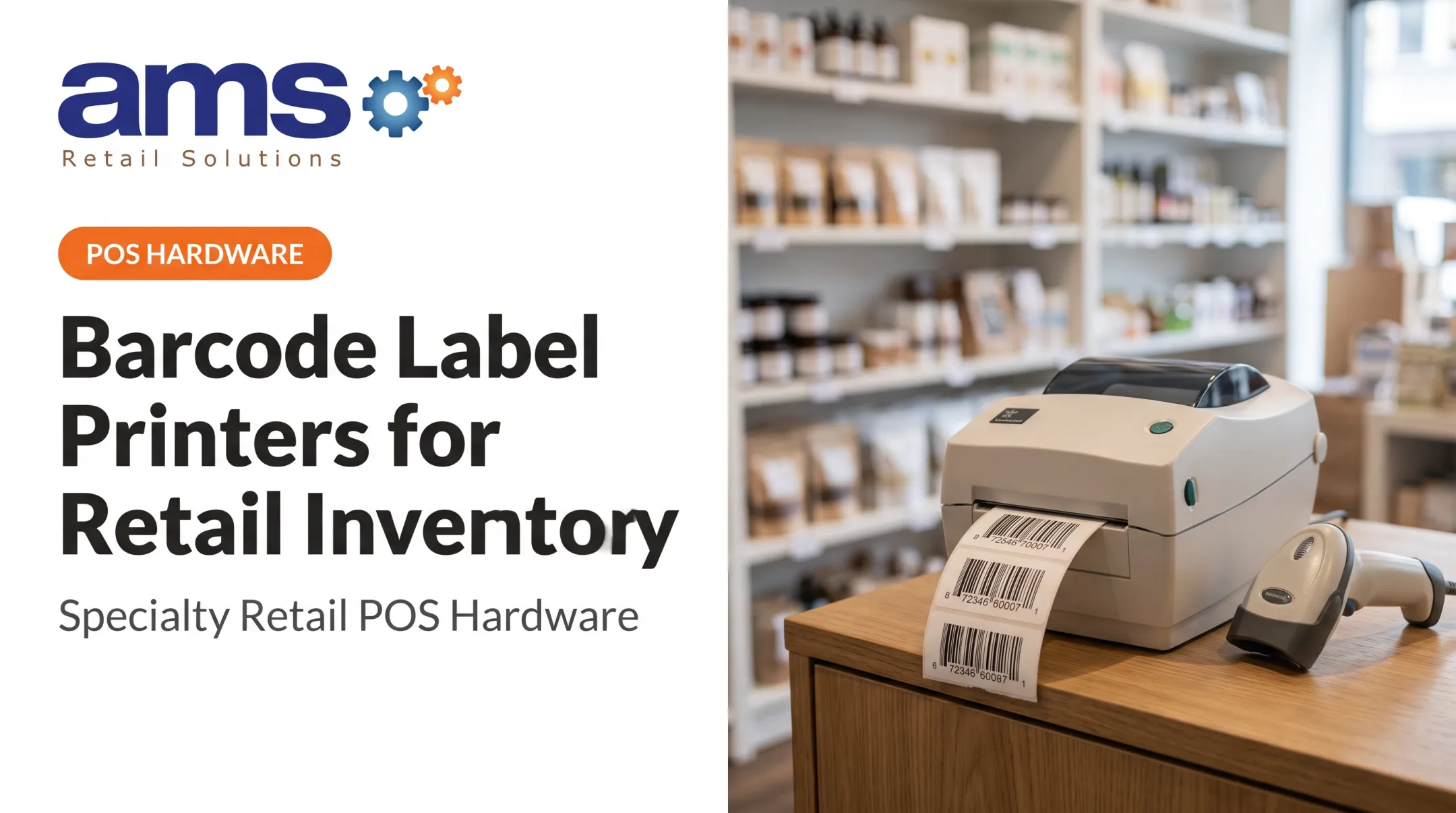
Yes. Suitable models print text, prices, and symbologies such as UPC-A/E and Code 128, given correct media, resolution, software, and template.
How do I connect a price tag printer to a POS system?
Options include direct drivers, network connections, label software, middleware, or approved data exports. Verify printer-language and POS compatibility first.
What size labels should I use for retail price tags?
Size depends on content, barcode dimensions, surface, and readability. Test the smallest practical format with real products and scanners.
Do thermal price tags fade or become unreadable?
Direct thermal can fade with sun, heat, and abrasion. Thermal transfer with matched ribbon lasts longer; moisture and storage conditions matter for both.