
A store owner or trained staff member can handle a basic setup if the provider offers guided onboarding. Complex migrations, integrations, payment configurations, and network problems often call for a POS technician or implementation specialist.
Rush the job and you risk failed transactions, wrong inventory counts, bad tax calculations, security gaps, confused staff, and downtime. Inventory accuracy is a good example: the Auburn RFID Lab puts typical exact-match accuracy at only 55%-65%, so a sloppy opening count compounds an existing problem. This guide covers preparation, setup, testing, and training.
Key Takeaways
- A retail POS needs compatible hardware, software, payment processing, product data, network access, permissions, and integrations.
- Prepare layout, power, connectivity, merchant account, tax settings, catalog, and roles before connecting equipment.
- Test sales, returns, discounts, receipts, inventory, payments, reports, and offline behavior before going live.
- Bring in provider support for multiple registers or locations, migrations, complex integrations, or payment-security needs.
Installation Guide for Setting Up a Retail POS System
The setup follows one sequence: define requirements, prepare the site and data, connect hardware, configure software and integrations, train staff, and validate before live transactions.
Effort depends on the number of checkout stations, SKU volume, existing systems, payment provider, network environment, and how much training your team needs.
Prerequisites and Safety Considerations
Confirm site readiness before unpacking anything:
- Measure and clear the checkout area, and confirm power outlets are in the right places.
- Plan customer and employee movement, and pick secure spots for the terminal, cash drawer, printer, scanner, and card reader.
- Check that your network can support the planned devices.
- Ask the provider which functions work during an internet outage.
Next, confirm business readiness:
- Terminal, operating system, printer, scanner, drawer, card reader, cables, payment processor, and software must all be compatible.
- Have your business profile, merchant account, bank details, store locations, receipt preferences, and payment methods ready.
- Configure US sales tax at the item level. Rules vary by state: California's CDTFA generally taxes clothing, while Pennsylvania generally exempts it, with exceptions.
Handle security before real payments:
- Follow the provider's security guidance and give each employee a unique login.
- Restrict administrative access and protect payment data.
- Confirm your payment setup matches your PCI DSS responsibilities. Listed P2PE solutions reduce PCI scope but do not eliminate your obligations.
- Change default passwords, and keep guest Wi-Fi separate from the payment network.
Stop if equipment is missing, power or network is unreliable, product and tax data hasn't been reviewed, or the payment account isn't active.
Tools and Parts Required for a Retail POS Setup
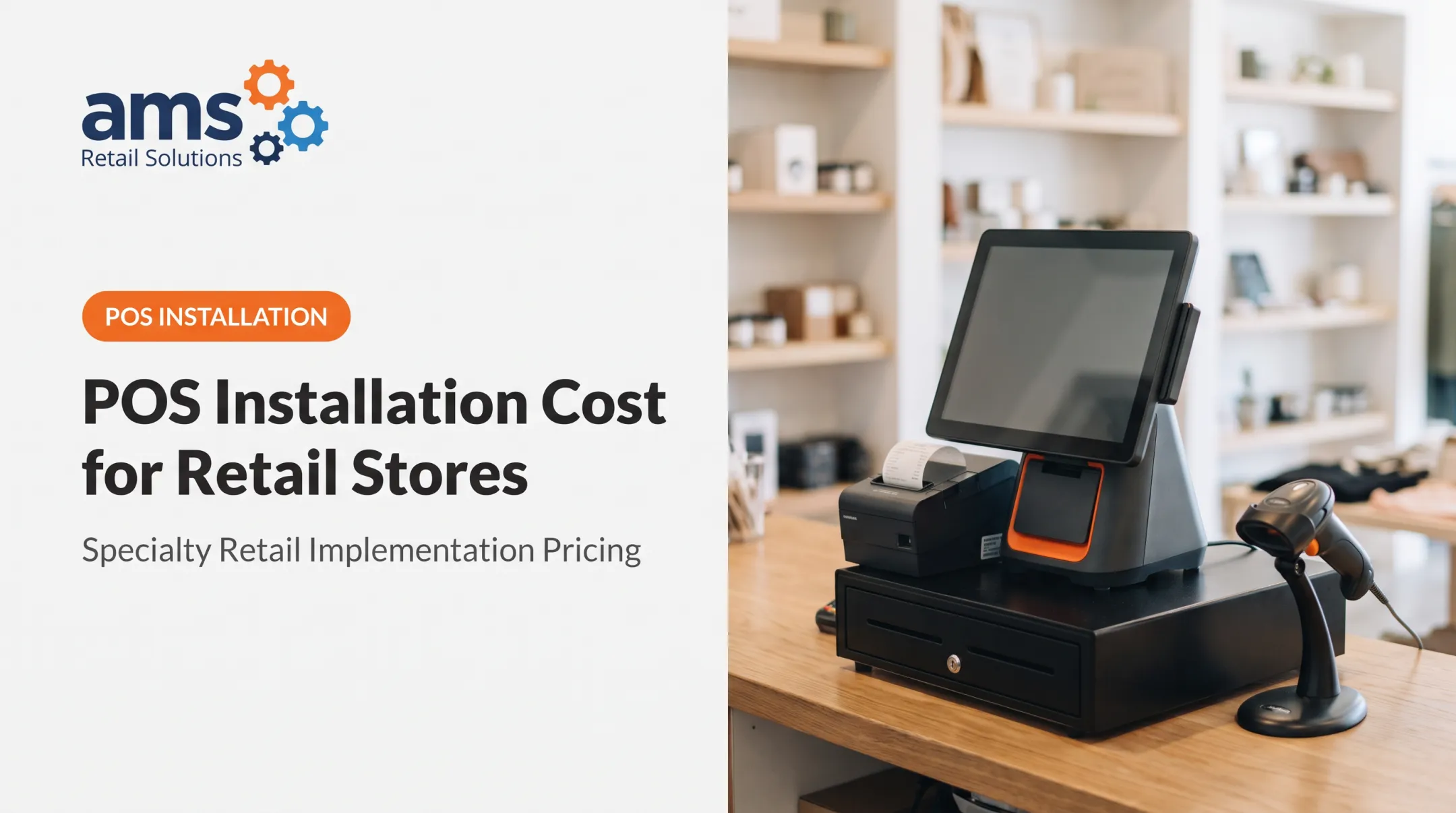
Typical components:
- POS terminal or tablet with a secure stand
- Card reader
- Barcode scanner
- Receipt printer and receipt paper
- Cash drawer, if you accept cash
- Power adapters and manufacturer-approved cables
- Network equipment where required
Optional extras include customer-facing displays, extra scanners, handheld or mobile terminals, label printers, backup connectivity, and cable-management accessories.
Stick to your provider's compatibility list. Many printer-driven cash drawers, for instance, only work with a compatible receipt printer. Unsupported substitutions are a common source of setup headaches.
How to Set Up a POS System in a Retail Store Step by Step
Order matters. Finish physical setup and compatibility checks before software configuration, and finish configuration before live testing. Shortcuts lead to mismatched hardware, wrong inventory, and payment failures.
- Inspect the shipment. Unpack everything, compare it to the order, check for damage, and record serial numbers and warranty details. Position equipment to match your checkout flow.
- Install the hardware. Secure the terminal, put the card reader within customer reach, place the scanner for fast item handling, connect the printer and drawer per manufacturer instructions, and route cables safely.
- Connect the network and launch the software. Use the approved wired, Wi-Fi, Bluetooth, or cellular method on a secure business connection. Sign in with an administrator account.
- Configure store and checkout rules. Add business and location details, tax rules, receipt formats, payment methods, return and exchange policies, discounts, categories, and register settings.
- Build or import the catalog. Load names, SKUs, barcodes, variants, prices, costs, categories, tax classes, suppliers, and opening stock. Use a supported bulk-import format and spot-check records afterward.
- Add employees and permissions. Create individual accounts by role. Limit refunds, voids, discounts, inventory adjustments, reports, and settings to the people who need them.
- Connect payments and integrations. Pair and activate the card reader, confirm card and contactless support, link accounting, ecommerce, or loyalty tools, and verify how data syncs. Some integrations can overwrite stock quantities in one system with values from another, so check direction first.
- Train staff and plan cutover. Cover sales, scanning, manual lookup, cash handling, receipts, refunds, exchanges, discounts, inventory lookups, end-of-day close, and who to call when something breaks.

Post-Installation Checks and Validation
Run controlled test transactions. Test cash, card, contactless, and any other enabled tender. Confirm the total, tax, discount, receipt, drawer behavior, authorization, and transaction record.
Some platforms' test modes exclude card-reader transactions, so check the physical terminal separately.
Go beyond the basic sale. Exercise the full workflow:
- Returns, exchanges, voids, and partial payments if supported
- Out-of-stock items, inventory deductions, and stock adjustments
- Customer records, loyalty activity, and accounting or ecommerce updates
Check security, reporting, and continuity. Confirm permissions, automatic logout, report totals, register reconciliation, backups, software version, and offline behavior. Don't assume offline transactions are available or unrestricted. Shopify's offline guidance notes offline card payments aren't sent to the processor, so a failure may surface only after reconnection.
Document approval. Record device identifiers, configuration choices, test results, open issues, support contacts, and who signed off. Skipping validation turns a small setup error into a checkout disruption or inventory discrepancy.
Common Installation Problems and Fixes
Hardware or Peripheral Does Not Connect
- Symptom: Scanner, printer, drawer, or reader won't respond.
- Likely causes: Wrong cable, no power, unsupported model, Bluetooth or network pairing trouble, outdated software, incorrect device settings.
- Fix: Follow the provider's connection sequence and compatibility documentation before replacing anything.
- Call the provider if the device is on the supported list and still fails.
Product Catalog, Tax, or Inventory Data Is Inaccurate
- Symptom: Wrong prices, bad receipts, odd stock counts.
- Likely causes: Duplicate SKUs, wrong barcodes, missing tax classes, import-column errors, bad opening counts. Opening a SKU-containing CSV directly in a spreadsheet can strip leading zeros from identifiers.
- Fix: Correct the source file, re-import, review records, do a physical count where needed, and retest representative products.
- Call the provider for large or repeated import failures.
Payment Processing or Network Connection Fails
- Symptom: Cards decline, the reader freezes, or the terminal drops mid-sale.
- Likely causes: Merchant account issues, unpaired reader, network outage, disabled tender types, missing offline procedure.
- Fix: Separate a card decline from a configuration or connectivity failure. Check the merchant account, reader pairing, network status, enabled tender types, and your offline procedure.
- Don't keep retrying. A timeout can leave payment status unknown, and Stripe's documentation warns that creating a new payment attempt can produce multiple authorizations. Contact your provider if failures persist across cards.

Staff Cannot Complete Routine Transactions
- Symptom: Cashiers stall on lookups, returns, discounts, or basic sales.
- Likely causes: Incomplete training, unclear permissions, unfamiliar lookup paths, unconfigured return and discount rules.
- Fix: Run role-based practice, write a one-page quick reference, and name a manager or provider contact for launch day.
- Call the provider when launch-day issues exceed what your floor lead can resolve. AMS Retail Solutions offers one-on-one training and 24/7 support for unexpected problems.
Pro Tips for Setting Up a POS System Effectively
- Pick a quiet window. Schedule installation, data import, practice, and final testing during low traffic. Keep a documented fallback, such as your old register, during the transition.
- Keep a configuration record. Log device assignments, network details, payment settings, tax and receipt choices, user roles, integration status, import files, test results, and sign-off. Update it with every change.
- Know when to call a specialist. Seek provider-led help for complex migrations, multi-register or multi-location setups, payment integrations, custom workflows, network security, or unreliable connectivity.
- Consider a single-source option. AMS Retail Solutions serves specialty retailers with NCR Voyix Counterpoint, customizable retail tools, retail-hardened equipment, offline capability where configured, and ongoing support. Judge fit by your processes, integrations, growth plans, and support needs, knowing they learn how you operate before recommending a solution.

Conclusion
A good retail POS setup depends on more than plugging in a terminal. Daily performance rests on several fundamentals:
- Accurate product data and compatible equipment
- Secure payments and reliable connectivity
- Sensible permissions, training, and thorough testing
Prepare carefully, follow your provider's installation sequence, document your decisions, and validate every key workflow. When the project outgrows your team's technical experience, get specialist help.
Frequently Asked Questions
What do you need for a POS system?
You need POS software, a terminal, a payment reader, network connectivity, a product catalog, a payment account, and staff user accounts. Scanners, printers, and cash drawers are optional peripherals based on your workflow.
What equipment is needed to set up a POS system in a retail store?
Most retail setups use a terminal, card reader, barcode scanner, receipt printer, and a cash drawer if you take cash. Customer displays or mobile devices are optional.
Can I set up a retail POS system myself?
Basic systems can be self-installed. Data migration, payment setup, integrations, network configuration, and multi-register deployments may justify provider or technician support.
How long does it take to set up a POS system?
It varies with hardware quantity, catalog size, integrations, payment approval, migration, testing, and training. One vendor, Celerant, cites roughly 4-6 weeks for small businesses, but that's not a universal figure.
How do I connect a POS system to inventory and payment processing?
Import or create your product catalog, set inventory options, activate the merchant account, pair the card reader, configure payment methods, and run test transactions.
What should I test before a POS system goes live?
Test sales, scanning, taxes, discounts, returns, exchanges, receipts, drawer behavior, payment types, inventory updates, permissions, reports, integrations, and supported offline procedures.