
Introduction
The line is six deep. Customers are holding flats of perennials, and the card reader just flashed an error. Then the register freezes.
Most staff do the same thing: restart everything and retry the card. That is how duplicate charges and lost sales records start.
The first 15 minutes should go to four jobs:
- Find the scope of the outage
- Protect transaction accuracy
- Switch to a safe fallback
- Tell customers what is happening
This guide gives you a minute-by-minute sequence. Garden Center magazine's 2025 survey found 74% of garden centers name May their strongest sales month. An outage then costs the most.
Key Takeaways
- Work out first whether one terminal, one payment device, or the whole store is affected.
- Use offline mode only if it was configured and tested before the outage.
- Never retry a payment that may be pending.
- Skip factory resets and unapproved changes.
- Escalate fast when every register is down or tampering is suspected.
What Is a POS System Outage?
A POS outage is any interruption that keeps a register or connected device from reliably completing sales, taking payments, opening the drawer, printing receipts, updating inventory, or syncing data.
A POS is not one box. It is software, terminals, payment devices, printers, cash drawers, scanners, your local network, internet service, a payment processor, and power. Any one of them can break checkout.

That is why the same symptom, "it won't ring up," can have very different causes and fixes.
Common POS Outage Patterns and Root Causes
Single-device problems
One payment terminal fails while the register still works. A scanner disconnects. One drawer won't pop. These point to a cable, a power source, or a device setting rather than a store-wide failure.
Network and provider problems
Several registers lose connectivity, card authorizations fail, or cloud features vanish. Other devices on the network may also lose internet. Lightspeed's support documentation lists connectivity, missed terminal updates, and configuration mismatches as common causes of payment failures.
Provider outages happen too. In one documented Lightspeed incident, POS and API impact was traced to a third-party service on Cloudflare's side. Your internet can be fine while the provider is not.
Hardware, power, and configuration
- Loose or wrong cables, including the drawer-kick cable
- An unpowered receipt printer, which can stop the drawer from opening
- Power surges and brownouts
- Frozen applications after a recent update
- Incorrect settings or worn equipment
Why waiting makes it worse
Ignoring an outage costs more than missed sales. It leads to duplicate tenders, wrong inventory counts, incomplete reports, and a painful reconciliation once service returns.
What to Do in the First 15 Minutes
Treat this as a rapid-response sequence that stabilizes the store before deeper troubleshooting. Do not factory-reset devices, reinstall software, or repeatedly retry an uncertain payment.
Minute 0–2: Assign control and record the incident
- A manager takes ownership and notes the start time.
- List affected registers and devices.
- Ask staff what happened right before the failure.
- Keep pending receipts, error screens, and transaction IDs for support.
Minute 2–5: Determine exactly what is affected
Test what fails: one register, all registers, only cards, only the drawer, or also scanning, printing, inventory lookup, and returns.
If one terminal is down, compare it with a working station. If every station is down, stop treating it as a single-device fault.
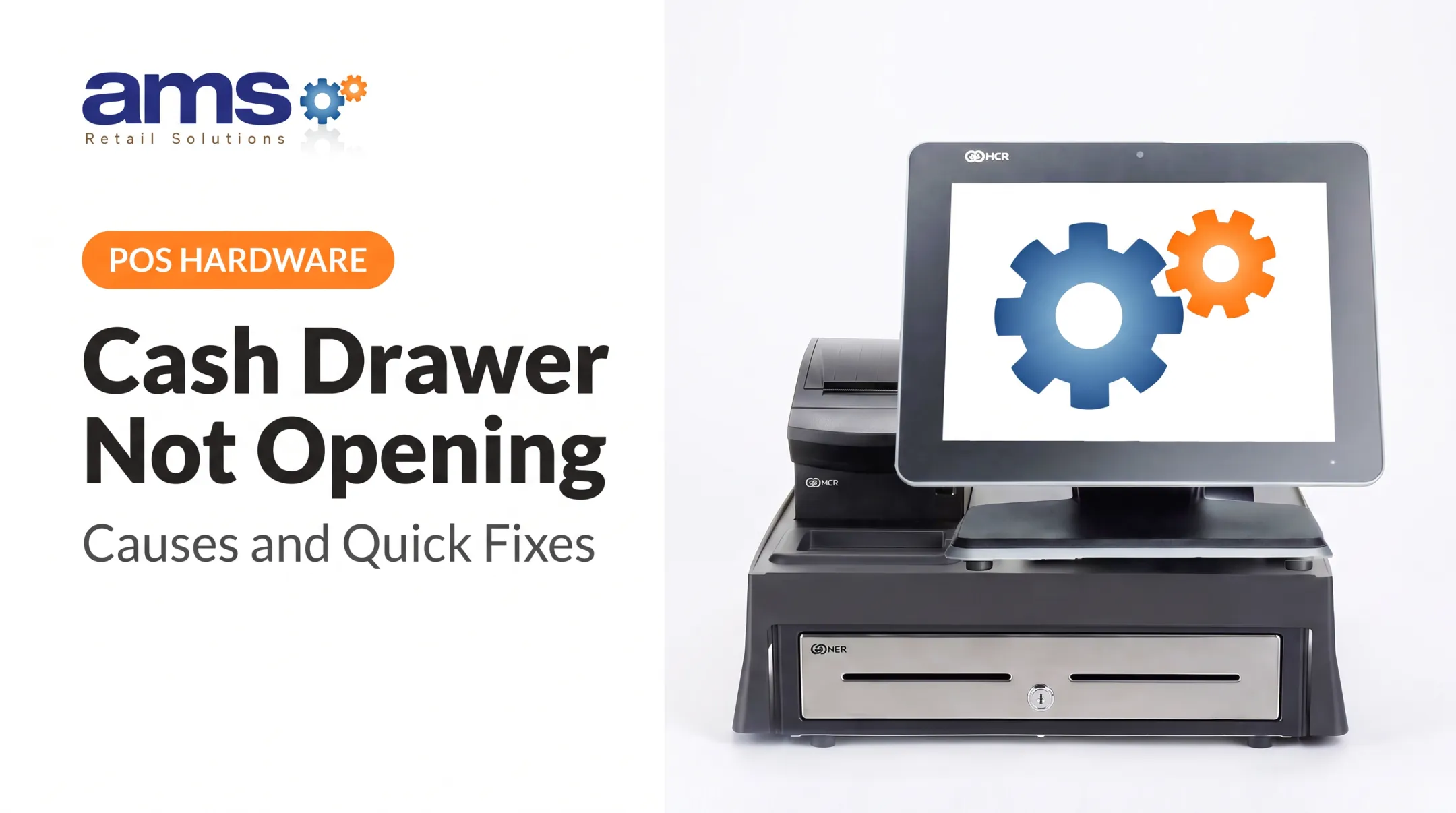
For a drawer that won't open, check these in order:
- Did the sale complete?
- Is the receipt printer powered?
- Is the drawer-kick cable connected?
- Is the drawer locked?
Use only the manufacturer-approved manual release. Don't force it.
Minute 5–8: Check for a known outage
- Look at your POS provider's status page, dashboard notices, and support email.
- Check the payment processor's status and your internet provider's status.
- Test internet on a separate device on the same network.
Working internet does not rule out a processor or POS-provider outage. If you suspect a broader outage, stop changing configurations and prepare your approved fallback.
Minute 8–11: Perform safe local checks
Confirm terminals, routers, switches, payment devices, and printers are on and connected. Look for an unplugged cable or a tripped power strip.
Restart a payment device or POS application only with the provider's approved sequence, then give it time to reconnect. Don't reboot everything at once if some registers still process sales. And don't repeat a payment whose first attempt may be pending.
Minute 11–15: Activate the fallback and escalate
If configured, switch on approved offline functionality, a backup network, a spare terminal, or a cellular-connected payment device. Verify which tenders, refunds, gift cards, discounts, and inventory functions still work.
No safe fallback? Move to your documented manual process, tell customers about delays or payment limits, and call POS support with your timeline and what you've tried.

How to Fix the Problem and Keep Sales Moving
The right fix depends on the failure category. The goal is accurate transactions with no duplicate charges, missing inventory records, or security gaps.
If the internet or store network is down
Check the router, switch, access point, cables, and any backup connection per your provider's instructions. Use offline mode only if your system is built for it.
Offline rules vary by product. Square stores offline card payments, but Lightspeed's R-Series documentation says offline payments stay unauthorized until reconnection, and offline payments don't update sales history or inventory.
Confirm the exact limits for authorization, refunds, gift cards, and sync on your own system.
If only payment processing is failing
- Check the payment device's power, connection, and status message.
- Leave the POS order intact where possible.
- Don't run the same card repeatedly or use an unapproved manual method.
- Record the transaction status and follow your payment provider's instructions for pending or declined tenders.
A pending bank entry isn't proof of payment, and an absent one isn't proof of failure. Check transaction history before collecting again.
If one terminal or peripheral is failing
Move sales to a working register or approved spare. Then inspect the scanner, printer, drawer cable, power source, and connection.
Keep the failed device isolated for support review. Don't delete settings, swap parts without approval, or put it back in service untested.
If the whole store is affected
- Activate your documented offline, cellular, spare-terminal, or manual process.
- Put one manager on support and another on customer and staff communication, if staffing allows.
- Use paper records only as an approved temporary workflow.
- Never write down full card numbers or security codes. PCI rules prohibit storing CVV after authorization, even encrypted.
- Decide how you will enter sales, tax, inventory, cash, and employee activity later.
Common mistakes to avoid
- Repeating payments or guessing. Preserve details and verify status with the provider. Never promise a customer a pending charge will vanish.
- Factory resets and improvised card storage. Resets can erase configuration and unsynced sales, and loose card data creates compliance risk.
- Skipping reconciliation. Once service returns, reconcile approved, declined, pending, voided, and manually recorded transactions before re-entering sales.
When Should You Troubleshoot, Switch to Backup, or Call for Help?
Base your next move on scope, risk, and time:
- Troubleshoot obvious local issues briefly
- Switch to a fallback when normal checkout is blocked
- Call support before any change that could affect transactions or configuration
A brief local attempt is appropriate
Try basic checks for an isolated loose cable, a powered-off printer, a locked drawer, a disconnected payment device, or a freeze with a known provider-approved remedy.
Switch to backup or offline processing
Go to your approved fallback when the internet is down, several registers share the failure, a provider outage is confirmed, or more troubleshooting would only delay customers.
Call support or consider replacement
Escalate immediately for:
- Repeated hardware failure, overheating, smoke, or damaged power equipment
- Corrupted data
- Every checkout point down
- Suspected tampering or security concerns
The PCI Security Standards Council says to stop using a suspected tampered terminal and report it right away.
Repair-versus-replace decisions should weigh recurring downtime, compatibility, supportability, workload, and total operating risk, not one component's age.

AMS Retail Solutions offers 24/7 POS support and service at 757.495.4995. Call with your incident timeline in hand.
Preventive Measures to Avoid Future POS Downtime
Prevention is faster than recovery. A garden center or farm market should know its fallback before the spring rush or a busy weekend, not during it.
- Test your offline setup. Confirm offline capability, backup connectivity, payment limits, data sync, and reconciliation are configured and tested.
- Protect the hardware. Use retail-hardened equipment, battery-backed power (surge-only strips won't keep a register running), spare cables and peripherals, and solid network coverage.
- Keep contacts handy. Print a list of POS, payment-processor, and internet-provider numbers.
- Write a short runbook. Cover diagnosis, customer messaging, manual records, drawer access, payment security, escalation, and reconciliation. Drill it periodically and revise it after every real incident.
AMS Retail Solutions provides NCR Voyix Counterpoint, which supports off-line POS when not connected to the network. Exact behavior depends on your version, payment integration, and configuration.
Conclusion
In the first 15 minutes, establish scope, check for a known provider or network issue, do only safe local checks, and activate an approved backup before frustration and transaction errors pile up.
Reliable offline capability, retail-ready equipment, trained staff, and responsive support turn an outage into a controlled incident. AMS Retail Solutions offers one-on-one training and 24/7 support at 757.495.4995.
Frequently Asked Questions
Why is POS not working?
The usual causes are network, power, payment processor, hardware, software, or configuration problems. Start by checking whether one terminal or the whole store is affected.
Is there a global outage happening right now?
Check your POS provider's status page, your payment processor, and your internet provider. Look at trusted outage reports before changing any local settings.
Why won't my cash drawer open automatically?
Confirm the sale completed, the drawer is unlocked, the receipt printer is powered, and the drawer-kick cable is secure. Use the manufacturer's manual release and never force it.
Can I still take payments if my POS system is down?
Possibly, through offline mode, a backup terminal, a cellular connection, or an approved manual process. Availability, limits, and security rules depend on your provider.
What should I do if only one POS terminal is offline?
Compare it with a working terminal and check its power and connections. Use an approved spare or alternate register, and escalate if the fault returns.
How do I reconcile transactions after a POS outage?
Review pending and approved payments, manual receipts, cash totals, inventory, tax, refunds, and duplicates. Finish this before normal operations resume.